Download the .zip file from your purchase receipt email
In Ghost Admin go to Settings → Design and click Upload a theme
Select the zip and click Activate. Bulletin is now your active theme.
Go to Customize → Brand to set your accent color, logo, and font
Create tags in Ghost, then enter their slugs under Customize → Theme to populate each homepage section
Layout
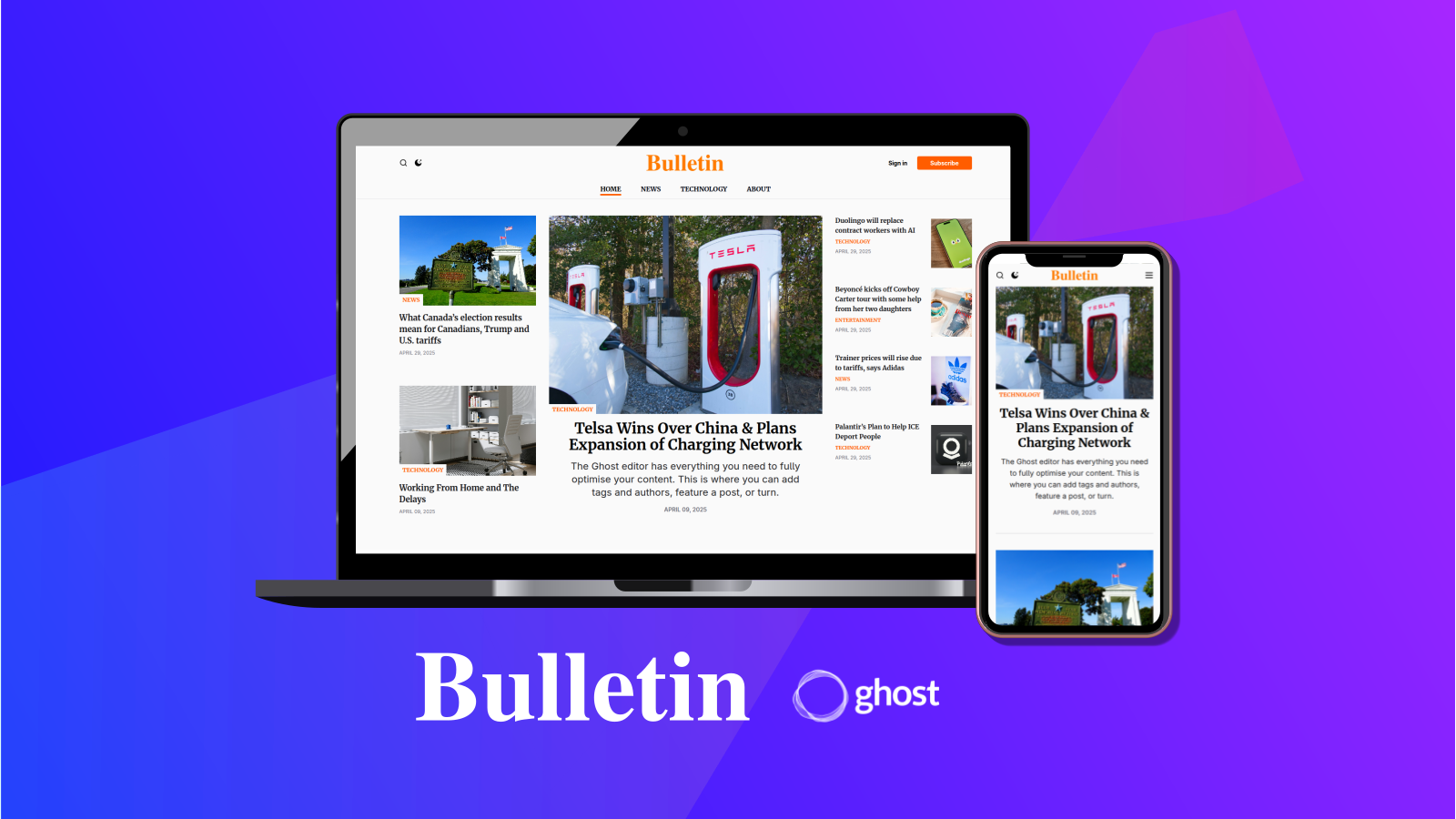
Header contains your logo, search button, and subscribe action. Navigation holds your primary menu links. Body is the main homepage feed, divided into tag-driven rows. Footer contains secondary nav links and social media icons.
Configuration
After activating Bulletin, open Settings → Design & Branding → Customize.
Brand
Accent Color: your publication’s primary color, used for links and highlights
Publication Logo: displayed in the header; recommended size 200 × 60 px
Typography: choose the font pairing for headings and body text
Theme Settings
Color Scheme
Auto follows the reader’s OS dark/light preference (recommended)
Dark forces dark mode for all visitors
Light forces light mode for all visitors
Homepage Sections
Each row on the homepage is driven by a Ghost tag. Enter the tag’s slug (found in Ghost Admin → Tags → [tag] → Slug) into the corresponding field.
Setting
What it controls
Example slug
Cover Tag Slug
Large hero post at the very top
cover
First Row Tag Slug
First content row below the fold
featured
Second Row Tag Slug
Second content row
tech
Third Row Tag Slug
Third content row
opinion
Recommended Tag Slug
“Editor’s picks” highlighted row
picks
Archive Tag Slug
All-posts / archive row at the bottom
archive
Call to Action
Subscribe prompt text shown in the feed
Subscribe to our newsletter
Recommended Text
Label displayed above the recommended row
Editor's Top Picks
Social Links
Enter each profile URL or username under Customize → Theme → Social Links. Icons appear automatically in the footer once a value is saved.
Mastodon Instance Profile URL
Instagram Username
Threads Username
YouTube Channel URL
Facebook Profile or Page URL
Bluesky Profile URL
X (Twitter) Profile URL
Tips
Create tags before entering slugs. A section will stay empty if the tag does not exist in Ghost yet.
Slugs are case-sensitive. Use lowercase with hyphens, matching exactly what Ghost shows in the tag edit screen.
Start with Auto color scheme. You can switch to Dark or Light later once you have seen how your brand colors look in both modes.
48-hour setup support is included. Email [email protected] if anything is not working as expected after purchase.